NAME
dns: buying your own domain name
The Introduction
I am not gonna start straight - What is DNS kinda thing. To understand the DNS system, we should know how the Internet as we know began, what implications does the Cold war have in it, or to do with it, Why there is no single entity controlling the entire Internet, related to which - Why does the internet not have a single off switch. What does it mean when someone says - The DNS server is down. What if the entire root level servers are down? What if someone just conducts HANE (High Altitude Nuclear Explosion) at the locations of all these root servers?
Welcome to the Internet, and the weird story of how it began. And how I got a domain name for free with TLD .tech for one year - using Github Student Education Pack. Literally, to be honest, owning a domain feels like - Nice.
How did the Internet Begin ?
I could tell that there’s no single, clean origin story. The internet, as a concept, is a network of networks - literally, “an internet” is any set of interconnected devices, while “the Internet” (capital I) is the one specific global network we all use. Me, you, the smart tracking band in your dog’s neck, all of it. Those devices span everything from my phone to my laptop to my printer to my smart coffee cup that, in a just world, would walk itself over and pour itself into my mouth.
Let’s keep this internet philosophy aside for a moment. The actual technical seed was planted in 1969 by ARPANET, funded by DARPA (the Defense Advanced Research Projects Agency), under the U.S. Department of Defense. Ah, the US dominance.
And this is where the Cold War context actually matters, not just as trivia - it shaped the design philosophy of the whole thing. This was the era of nuclear standoff between the US and USSR. Military planners were terrified of a scenario where a single well-placed strike on a centralized communications hub could cripple the entire country’s ability to communicate.
So the requirement baked into ARPANET from day one wasn’t just “connect some computers” - it was “build a network with no single point of failure,” where if any node got knocked out, traffic could route around it automatically.
That’s where packet switching comes in. Instead of using a dedicated end-to-end circuit like an old telephone call, messages get chopped into packets, and each packet can be routed across the network. Once they reach the destination, they can be reassembled into the original message. If one path is down, packets can take another route.
This idea alone is arguably one of the most important design decisions in networking history, and to me, it feels like a direct child of Cold War paranoia.
The first four nodes connected in 1969 were UCLA, Stanford Research Institute, UC Santa Barbara, and the University of Utah - all research institutions. That lines up with what I remembered: the technology was shared with universities so students and researchers could build on top of it.
And that’s also, not coincidentally, why I think the Internet grew up with such a strong culture of open collaboration and shared standards. It was raised by academics, not corporations.
Then, in 1983, two things happened that mattered more than people usually realize.
-
First, ARPANET split into ARPANET, which handled civilian research, and MILNET, which handled military traffic. This separated the war-fighting network from the research network.
-
Second, and honestly much more importantly, the whole system adopted TCP/IP - Transmission Control Protocol / Internet Protocol - as its universal language.
That was the bigger deal for me. TCP/IP made it possible for completely different, previously incompatible networks to communicate with each other using a shared set of protocols.
And that, in my view, is what really transformed the idea of “an internet” - a bunch of separate networks - into “the Internet,” one interconnected global system.
Everything I’m talking about now - DNS, ports, IP addresses, and so much more - ultimately sits on top of the networking architecture that TCP/IP established. The Internet was still in its embryo, like I said, but this was the moment it started developing a nervous system.
Cold War Paranoia…
Requirement for Addresses
Okay - before IP addresses, there’s a layer underneath them that needs its own origin story: the MAC address. I thought it is - Message Authentication Code… Oh boy…
And I need to correct something here. MAC does not stand for “message authentication code.” That’s a cryptography term. I’ll get to it later when I study HMAC or TLS. It has nothing to do with the MAC address I’m talking about here.
Here, MAC = Media Access Control address.
So why did MAC addresses need to exist?
I have to go back to the basic idea behind Ethernet. When Ethernet was developed in the 1970s at Xerox PARC, multiple devices were going to communicate over the same physical network. Later, the same basic problem applied to wireless networks, where devices share the same radio spectrum.
Now imagine a bunch of computers connected to the same cable. Data is travelling across that cable, and every computer can potentially see the frames passing through the network segment.
How does my computer know which frames are meant for it?
I need some way of identifying the intended recipient.
That’s where the MAC address comes in. Every network interface has an address that lets devices on the same local network distinguish one device from another.
So, in simple terms:
- “This frame is for me.”
- “This frame is for someone else.”
That’s the job of a MAC address.
Every network interface card (NIC) - the network hardware in my laptop, phone, or coffee cup - traditionally has a 48-bit, or 6-byte, MAC address. It is usually written as six hexadecimal pairs:
00:1A:2B:3C:4D:5E
The first 3 bytes traditionally identify the manufacturer. This part is called the OUI - Organizationally Unique Identifier.
So if I look at a MAC address, the beginning can tell me which organization was assigned that particular address range.
But there’s an important limitation.
MAC addresses are local.
My laptop’s MAC address is useful on my local Ethernet or Wi-Fi network. Once my traffic leaves that network and starts travelling through routers, the MAC address is no longer used to identify my laptop across the Internet.
My coffee cup might have a MAC address like:
AA:BB:CC:DD:EE:FF
But a server on the other side of the world doesn’t need to know that address.
So MAC answers something like:
“Which device on this local network?”
It doesn’t answer:
“Where is this device across the Internet?”
That’s where IP addressing comes in.
MAC addresses belong to the data-link layer, while IP addresses belong to the network layer. The two solve different problems.
There’s also a security problem here that becomes interesting when I look at ARP.
ARP - Address Resolution Protocol - is used on IPv4 networks to figure out which MAC address corresponds to a particular local IP address.
For example, my computer might know:
192.168.1.10
but it needs to know the corresponding MAC address before it can send an Ethernet frame to that device.
ARP handles that mapping.
The problem is that traditional ARP has no built-in authentication. A device on the same network can send a forged ARP message and claim:
“192.168.1.10 is at my MAC address.”
If other devices accept that information, they may start sending traffic to the attacker instead.
That’s ARP spoofing, and it can be used to set up a man-in-the-middle attack on a local network.
Now you can move up a layer and talk about IP addresses.
A Unix socket analogy still works reasonably well here. A socket tells the operating system where application data should go. An IP address serves a different purpose - it identifies a network endpoint and gives routers information they can use to move packets between networks.
IPv4 (Internet Protocol Version 4)
IPv4 uses a 32-bit address.
That gives:
2³² = 4,294,967,296
possible address values.
That sounds like a lot until I remember how many devices exist today.
IPv4 addresses are normally written as four decimal numbers separated by dots:
192.168.1.1
Each number represents 8 bits, so each one can range from 0 to 255.
Back when the Internet was still small, around the early 1980s, 4.29 billion addresses probably looked like an enormous amount of space.
The problem was that the Internet didn’t stay small.
Computers became common. Businesses connected to the Internet. Homes connected. Then phones, tablets, televisions, cameras, cars, watches and every other piece of “smart” hardware started getting network connectivity.
Suddenly 4.29 billion didn’t look so infinite anymore.
Then the World Wide Web came along.
I need to separate the Web from the Internet here because they’re often treated as the same thing.
But… They aren’t.
The Internet is the underlying network infrastructure that connects networks and devices together.
The Web is a service that runs on top of that infrastructure. Tim Berners-Lee developed the foundations of the Web around 1989-1991, including HTTP, URLs and the idea of documents connected through hyperlinks.
So when you open a website, you’re using the Web, but the packets carrying that website’s data are travelling across the Internet.
The Web’s growth during the 1990s helped push Internet connectivity into homes and businesses, which increased the demand for IPv4 addresses.
You can think of it like a building.
Imagine you have a 45-storey building with a fixed number of apartments. At first, there’s plenty of room. Then the population keeps increasing, and eventually every available apartment is being used.
You can’t keep creating new apartments without changing the building.
IPv4 had a similar problem.
One of the things that helped was NAT - Network Address Translation.
NAT lets multiple devices inside a private network share a single public IPv4 address.
For example, my home network might look something like this:
192.168.1.10- laptop192.168.1.11- phone192.168.1.12- printer192.168.1.13- coffee cup
All of them can access the Internet through one public IP address assigned to my router.
The router keeps track of these connections and translates between the private addresses inside my network and the public address used on the Internet.
That saved a huge number of IPv4 addresses.
But NAT doesn’t create more IPv4 addresses. It just lets me use the existing ones more efficiently.
The Internet still needed a much larger address space.
IPv6 (Internet Protocol Version 6)
That’s where IPv6 comes in. IPv6 uses 128-bit addresses.
That gives us : 2¹²⁸ ≈ 3.4 × 10³⁸ possible addresses. And that’s an absurdly large number. IPv6 addresses are written using hexadecimal and divided into eight groups:
2001:0db8:85a3:0000:0000:8a2e:0370:7334
There are ways to shorten IPv6 addresses by removing unnecessary zeroes, but the full form above shows the basic structure. So now I have two very different kinds of addresses doing two different jobs.
MAC address:
“Which device am I talking to on this local network?”
IP address:
“Which network endpoint am I trying to reach, and how can packets get there?”
MAC handles local network addressing. Whereas IP handles addressing between networks.
How will a device know my IP address?
It does not want to…
My instinct here would be to think: if I know the name of a website, how does my computer actually find the IP address belonging to it? It obviously can’t just check every device on the Internet until it finds a match. That would be absurdly slow and wasteful.
So instead, we have DNS - the Domain Name System.
I can think of DNS as a giant, distributed, hierarchical phonebook. I give it a domain name, such as dream-wa1ker.tech, and it helps me find the IP address associated with that name.
But there are several steps between me typing a domain name into my browser and getting an IP address back.
Step 1 - My resolver
My device doesn’t wander around the Internet asking random machines for the IP address.
It is configured with a recursive DNS resolver. The address of that resolver can come from my router, which may have received it from my ISP, or I can configure one myself.
For example:
1.1.1.1- Cloudflare8.8.8.8- Google
So when I type:
dream-walker.tech
into my browser, my device asks the resolver to find the answer. Something similar happens first, before handling control to the resolver :
-
The browser first checks it’s cache if the address for the domain exists.
-
If not, it would check in the host’s cache instead of the browser cache.
-
If does not exist, it would look in the host file. In a Linux system, it is :
/etc/hosts
NOTE : But this is not some global order in which these steps resolves. Each application will have it’s own method and order of resolving the IP address of the requested domain name. Overall, if I am accurate, the options will look like this :
Browser
   │
   ├── Browser DNS cache
   │       │
   │       └── found? → use IP
   │
   ▼
Operating system / resolver APIs
   │
   ├── OS/application DNS cache (if present)
   │
   ├── /etc/hosts
   │       │
   │       └── found? → use IP
   │
   ▼
Configured DNS resolver
   │
   ├── Resolver's cache
   │       │
   │       └── found? → return IP
   │
   ▼
DNS hierarchy
   │
   ├── Root servers
   ├── TLD servers (.tech)
   └── Authoritative nameserver
           │
           └── A / AAAA record
                   │
                   ▼
                 IP address
Basically:
“Go find the IP address for
dream-wa1ker.tech.”
The browser itself doesn’t have to perform the whole DNS search. It delegates that job to the resolver.
The resolver is the one that goes through the DNS hierarchy and figures out where the answer is.
On Linux, /etc/hosts isn’t necessarily just a fallback after every possible cache. The exact order is controlled by the system’s name-service configuration, commonly through /etc/nsswitch.conf, and applications can also have their own behavior.
Step 2 - The root servers and that mysterious trailing dot
There is a small detail in DNS that I didn’t initially think about.
Technically, a fully qualified domain name ends with a dot:
dream-wa1ker.tech.
That final dot represents the DNS root.
We normally don’t type it because DNS software already understands the root implicitly.
If we look at the domain from right to left, the hierarchy is basically:
dream-wa1ker.tech.
The final:
.
is the root.
Then:
.tech
is the TLD or the Top Level Domain.
Then:
dream-wa1ker
is the domain name registered under that TLD.
The DNS root is the very top of this hierarchy.
There are 13 logical root server addresses in the DNS system, named: a.root-servers.net through: m.root-servers.net
But saying “there are 13 root servers” can be misleading because it doesn’t mean there are only 13 physical machines in the entire world handling root DNS queries.
The root server operators use a technique called anycast. The same IP address can be announced from many different locations around the world. My DNS query is then routed to an appropriate instance of that service, usually one that is geographically or topologically close to me. So think about it. What does it actually mean to bomb all 13 root servers? Can we actually bomb it using a HANE?
So one root server address can represent many physical servers distributed across different locations.
The root server itself doesn’t need to know where dream-wa1ker.tech is hosted.
Its job is much smaller.
It basically tells my resolver:
“I don’t know where
dream-wa1ker.techis, but I know which servers are responsible for.tech.”
So now my resolver knows where to ask next.
Step 3 - What is .tech, actually?
.tech is a TLD - Top-Level Domain.
It’s the part after the last dot in a domain name.
Some examples I’m already familiar with are:
- .com
- .org
- .edu
- .gov
- .in
- .uk
.tech belongs to the category called a gTLD - generic Top-Level Domain.
There are many newer gTLDs beyond the older set of domains people traditionally associate with the Internet.
ICANN, the organization that coordinates the global domain name system, opened up applications for many new TLDs starting around 2012-2014.
That allowed companies and organizations to operate new domain extensions that could be generic, descriptive, or brand-specific.
.tech is one of those newer gTLDs.
It makes sense that it’s popular with technology companies, startups, developers, and other tech-related sites. It’s descriptive, and getting a short .com domain name has become increasingly difficult because so many obvious names were registered years ago.
Now, the important part for the DNS lookup isn’t really who uses .tech.
Every TLD has its own DNS infrastructure.
The .tech TLD servers know which authoritative name servers are responsible for the individual domains registered under .tech.
So my resolver has gone from:
“I need
dream-wa1ker.tech.”
to:
“The root told me to ask the
.techservers.”
Then I ask the .tech servers:
“Who is responsible for
dream-wa1ker.tech?”
The .tech server still doesn’t necessarily give me the actual IP address.
Instead, it tells my resolver which authoritative name server is responsible for dream-wa1ker.tech.
That’s the next step.
Step 4 - The authoritative name server and where the registrar fits in
Now I get to the server that actually knows the DNS records for: dream-wa1ker.tech
This is the authoritative DNS server.
It contains the records configured for the domain.
This is also where I need to separate two things that are often confused (I got confused…):
Registrar and DNS provider are not necessarily the same thing.
A registrar is the company I use to register a domain name.
Examples include:
- GoDaddy
- Namecheap
- Porkbun
- Cloudflare Registrar
When I register a domain, the registrar handles the registration process and maintains the information saying that this domain has been registered to me through the appropriate domain registry.
A DNS server, or more specifically an authoritative DNS provider, has a different job.
It answers questions such as:
“What is the IP address for
dream-wa1ker.tech?”
So, does my registrar have to be my DNS provider? No. A DNS Provider is a company/entity that provides me the service - of the name servers. A DNS provider is an entity that provides DNS hosting/service for my domain, including authoritative nameservers that answer DNS queries for that domain.
I bought the domain from Namify from get.tech, in which the original DNS name servers are from Namify. Then I migrated my nameserver to cloudflare, which I consider is one of the best DNS Providers, provides robust name servers in existence.
Many registrars offer DNS hosting as part of their service, which is why people often assume they’re the same thing.
But I can register a domain through one company and use another company entirely for DNS.
For example, I could register: dream-wa1ker.tech with Namify and use Cloudflare for DNS.
In that setup, I would log into my registrar and change the domain’s nameserver records to point to the nameservers Cloudflare gave me. Those NS records look something like this :
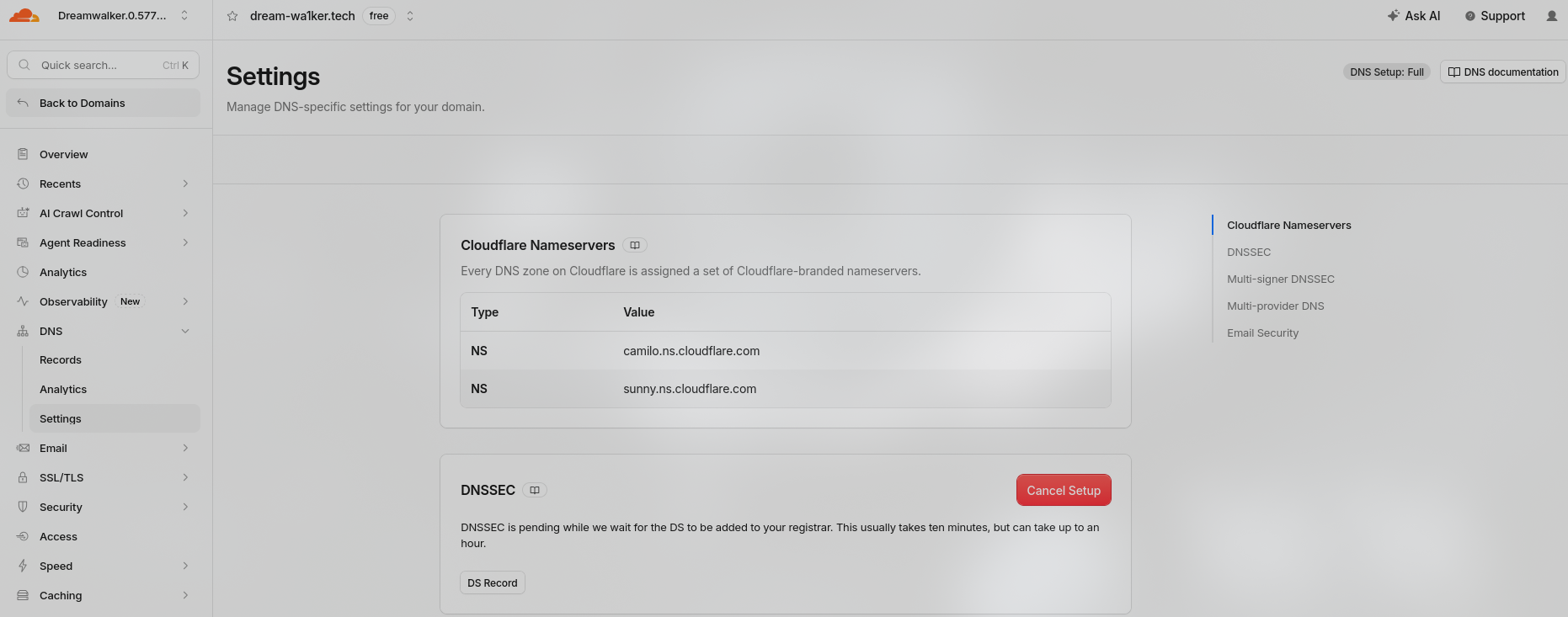
After that, the registrar is still responsible for the domain registration, but Cloudflare’s DNS infrastructure is responsible for answering DNS queries for my domain.
So the two jobs are separate. The registrar handles the registration, which is Namify, and the DNS provider handles the DNS records, which in my case is Cloudflare.
How many nameservers can a DNS provider have?
Take Cloudflare as an example.
There isn’t a hard technical limit saying that a DNS provider can only operate a certain number of physical DNS servers.
A company like Cloudflare operates a huge globally distributed infrastructure with many physical locations and servers.
But when I configure a particular domain, I’m normally given two nameserver names.
They might look something like:
camilo.ns.cloudflare.com
and:
sunny.ns.cloudflare.com
Why two?
Because having only one authoritative nameserver would create a single point of failure.
If that one server goes down, nobody can get authoritative DNS answers for my domain.
Having multiple nameservers provides redundancy.
There is also a practical limit related to how many NS records can fit into DNS responses and delegation mechanisms. The traditional DNS root system has 13 root server addresses, but that doesn’t mean every domain is limited to 13 nameservers in exactly the same way. In practice, most domains use only two to four authoritative nameservers.
And again, those two nameserver names don’t necessarily represent two physical machines.
If Cloudflare gives me:
camilo.ns.cloudflare.com
and:
sunny.ns.cloudflare.com
those names can be backed by Cloudflare’s much larger anycast infrastructure.
So I might technically configure two nameserver names for my domain while Cloudflare is actually serving those names from many locations around the world. Yesh. You gotta notice that - Many locations from the world. Thanks to Anycast, we will talk about that functionality after, in another blog, once I have learnt about it…
Then the actual DNS resolution happens
At this point, my resolver has finally reached the authoritative server for:
dream-wa1ker.tech
Now it can ask:
“What’s the actual address for this domain?”
The authoritative server can return different DNS record types.
For an IPv4 address, I get an A record.
For an IPv6 address, I get an AAAA record.
For example:
dream-wa1ker.tech -> A -> 203.0.113.10
or:
dream-wa1ker.tech -> A -> 2001:db8::10
The resolver then sends that information back to my device. But it doesn’t necessarily have to repeat this entire process the next time I ask for the same domain. DNS uses caching. DNS records have a TTL - Time To Live value. The TTL tells resolvers how long they can keep the answer in their cache before they need to ask again.
So if I visit: dream-wa1ker.tech and the resolver has already looked up its IP address recently, it might already have the answer stored.
Instead of going through: resolver -> root -> TLD -> authoritative server, again, it can simply return the cached result. That makes DNS much faster and reduces the amount of DNS traffic generated across the Internet.
What about subdomains?
Now I can also create subdomains underneath my main domain.
For example:
-
blog.dream-wa1ker.tech -
mail.dream-wa1ker.tech -
api.dream-wa1ker.tech
These are still part of the same DNS hierarchy.
I don’t need to register blog.dream-wa1ker.tech as a separate domain.
I just create another DNS record under my existing domain.
For example:
api.dream-wa1ker.tech
could have an A record pointing to an IPv4 address. Or I could use a CNAME or a Canonical Name. A CNAME is an alias that points to another hostname rather than directly specifying an IP address.
For example:
blog.dream-wa1ker.tech -> CNAME -> some-host.example.com
Then DNS can resolve that other hostname to its IP address.
So if I already have Cloudflare handling the DNS for dream-wa1ker.tech, I can create these subdomains from Cloudflare’s DNS dashboard.
I don’t have to contact my registrar every time I want to create a new subdomain.
The registrar doesn’t need to be involved in each individual DNS record.
What actually happens when I visit the website?
This whole DNS process happens before my browser can connect to the actual server.
The rough flow is:
I type:
dream-wa1ker.tech
        |
        v
My device
        |
        v
Recursive DNS resolver
        |
        v
Root DNS servers
        |
        v
.tech TLD servers
        |
        v
Authoritative DNS server
        |
        v
A / AAAA record
        |
        v
IP address
        |
        v
My browser connects to that IP
        |
        v
HTTP / HTTPS
So DNS isn’t actually delivering the website to me, instead it just helps my computer figure out where the website’s server is. Once the resolver gives my machine the IP address, the browser can finally start communicating with that server. For HTTPS, that means establishing the appropriate connection and performing the TLS handshake before sending the HTTP request.
The security side
There is another part of DNS that I (as well as we) need to understand: all of these DNS steps involve information that someone could potentially try to manipulate.
-
(A) My resolver asks questions.
-
(B) Servers return answers.
If an attacker can somehow insert a fake answer into that process, my computer could be sent to the wrong IP address.
For example, I might ask:
“What’s the IP address of
bank.example?”
and somehow receive:
bank.example -> 203.0.113.50
when the real server is somewhere completely different. If my computer accepts the fake answer, my browser could connect to the attacker’s server instead of the legitimate one. One attack involving this idea is DNS cache poisoning. (Yeh boy, Cloudflare’s documentation covers that too…)
An attacker tries to get a fake DNS record stored in a resolver’s cache. If that succeeds, other users relying on that resolver can receive the wrong IP address until the poisoned record expires or is removed.
There is also DNS spoofing on a local network.
That is somewhat similar in concept to ARP spoofing. Instead of lying about which MAC address belongs to an IP address, the attacker tries to interfere with DNS and give the victim a false answer for a domain.
There is another problem with traditional DNS.
Normal DNS queries are commonly sent using UDP port 53.
The DNS traffic itself is not encrypted.
So if someone can observe the network traffic between me and the resolver, they may be able to see which domains I’m querying. Just fire up your browser, and fire up wireshark, filter UDP connections. Or more specifically, filter for just DNS protocol. Type some bizzare url, that is not present in the browser cache. And we can see the queries in plaintext.
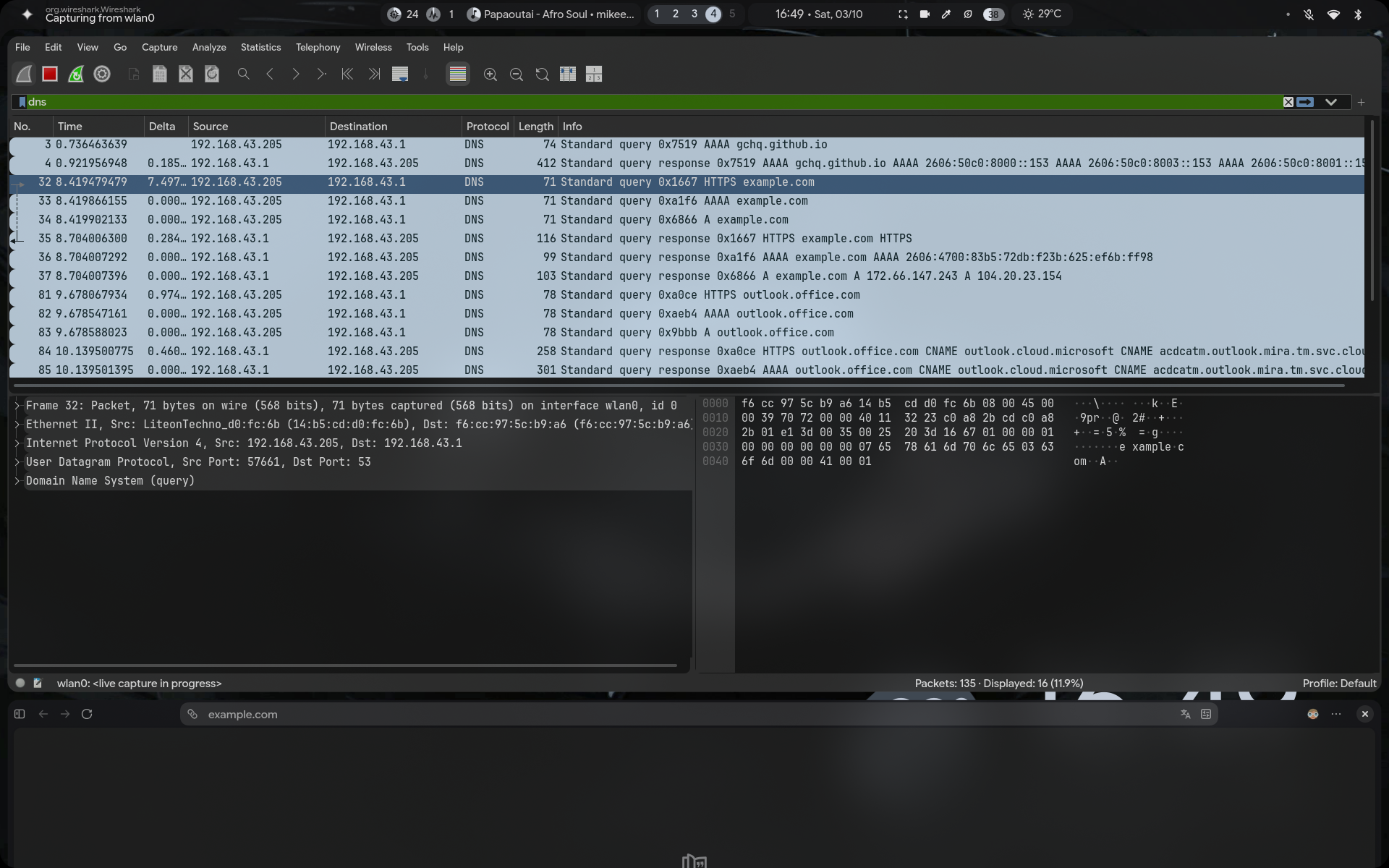
For example, they could potentially see that I’m asking for:
-
example.com -
youtube.com -
dream-wa1ker.tech
even though they don’t necessarily see the contents of the actual HTTPS traffic afterward. As you can see in the image above, it is obviously visible that I searched for example.com, in in some way, the outlook which I kept open in the essentials tab was also queried…
Ah, we can also notice that outlook.office.com is actually a CNAME for outlook.cloud.microsoft which is in turn a CNAME for some long random regional AAAA \ A record.
This is part of the reason technologies such as DNS over HTTPS (DoH) and DNS over TLS (DoT) exist. They encrypt the communication between my device and the DNS resolver.
-
With DoH, DNS queries are sent through HTTPS.
-
With DoT, DNS queries are sent through TLS.
The idea is to stop someone sitting on the network from simply reading or modifying my DNS queries while they’re travelling between my machine and the resolver.
And then there’s DNS tunneling, which is a completely different kind of abuse.
DNS is one of those protocols that networks usually have to allow because normal Internet usage depends on DNS working.
That makes it useful to attackers.
Instead of using DNS normally to ask:
“What’s the IP address for this domain?”
an attacker can encode information inside DNS queries and responses.
For example, pieces of stolen data can be encoded into subdomain names and sent to a domain controlled by the attacker.
Something that looks like:
x7f92a.example.com
could contain encoded information rather than being a normal subdomain someone created for a website.
The attacker can then receive those DNS queries on their own infrastructure and reconstruct the data.
So DNS is not just a simple “domain name to IP address” lookup.
There is a whole hierarchy underneath it:
Domain name
     |
     v
Recursive resolver
     |
     v
Root
     |
     v
TLD
     |
     v
Authoritative nameserver
     |
     v
DNS record
     |
     v
IP address
And only after all of that does my browser actually know where to connect.
I type a human-readable name like:
dream-wa1ker.tech
-
My machine asks a resolver.
-
The resolver works its way through the DNS hierarchy, unless it already has the answer cached.
-
Eventually it gets an A or AAAA record from the authoritative DNS server.
-
That IP address is handed back to my machine.
-
Only then does my browser actually connect to the server and start requesting the webpage.
So when I type a domain name into a browser, I’m not searching the Internet for a machine with that name. I’m asking a distributed naming system to translate a human-friendly name into an address that the network can actually use. TIP : Watch Network Chuck’s Video on DNS - for even better understanding of what I wrote above.
DNS Does Not End Here… Will be edited soon…